

A teammate asks whether a release includes the sample configuration file. You are editing another branch and do not want to switch versions just to locate a path. Git ls-tree lets you inspect the files recorded in a commit independently of the contents of your working directory.
1. Select the version to inspect
The examples use HEAD, meaning the current commit. For a release check, replace HEAD with a verified tag or commit ID. Record the commit ID in your handover notes so another person can inspect the same snapshot even after the branch moves forward.
git rev-parse HEAD
git ls-tree --full-tree --name-only HEAD
The second command lists entries at the root level. Seeing a directory name does not mean you have inspected all the files inside it. As described in the Git ls-tree documentation, -r recurses into subtrees, while --full-tree prevents the current directory from limiting the listing.
2. List files and narrow the scope
git ls-tree -r --full-tree --name-only HEAD
git ls-tree -r --full-tree --name-only HEAD -- docs/
The first command is useful for reviewing all file names in the snapshot. The second focuses on the root-level docs directory. Before handing over documentation, for example, look for docs/setup.md in this listing instead of relying on a file currently open in your editor.
If an expected path is missing, check the commit, letter case, and directory location. An empty result does not prove the file has never existed in history. It might be on another branch or have been renamed before the snapshot you are inspecting.
3. Distinguish the snapshot from working files
Suppose the current commit contains docs/setup.md, but you have just created docs/checklist.md without committing it. A listing of HEAD still reflects the saved commit. Even staging the checklist does not change HEAD; a new commit is required.
This is why a file existing on someone's computer is not enough to establish that it belongs to the delivered version. Record three things for each check: the inspected commit, the expected path, and the observed result. You can do this without changing branches or disturbing ongoing work.
4. Inspect metadata when needed
git ls-tree -r -l --full-tree HEAD -- docs/This form shows the mode, object type, object ID, blob size in bytes, and path. It can help spot an unexpectedly large documentation file before further investigation. Do not interpret blob sizes as the repository's on-disk size or the size of a built release.
A path listing does not establish that the application works either. A release may also depend on installed packages, generated assets, or data outside Git. Combine this inventory with the project's build and testing process.
5. Be careful when scripting
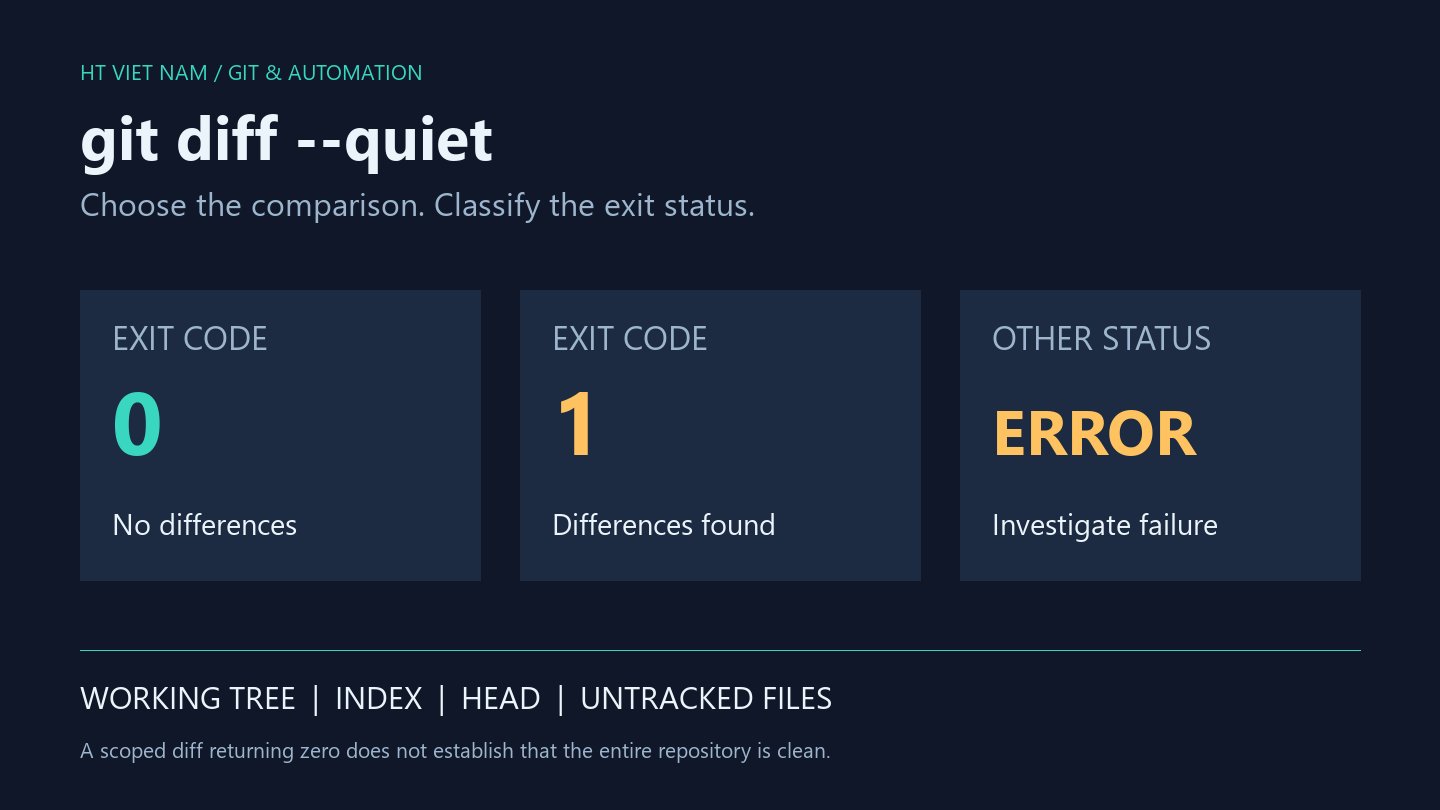
Line-oriented output is convenient for manual reading. When processing arbitrary filenames programmatically, use -z with a reader that supports NUL delimiters; do not split filenames on spaces. Always check the exit status before trusting the resulting list.
The final checklist is simple: verify the commit, verify the scope, locate the required path, and do not confuse uncommitted files with release contents. A small inventory check makes discussions about which version contains a file concrete and reproducible.
No comments yet. Be the first to share your thoughts.