
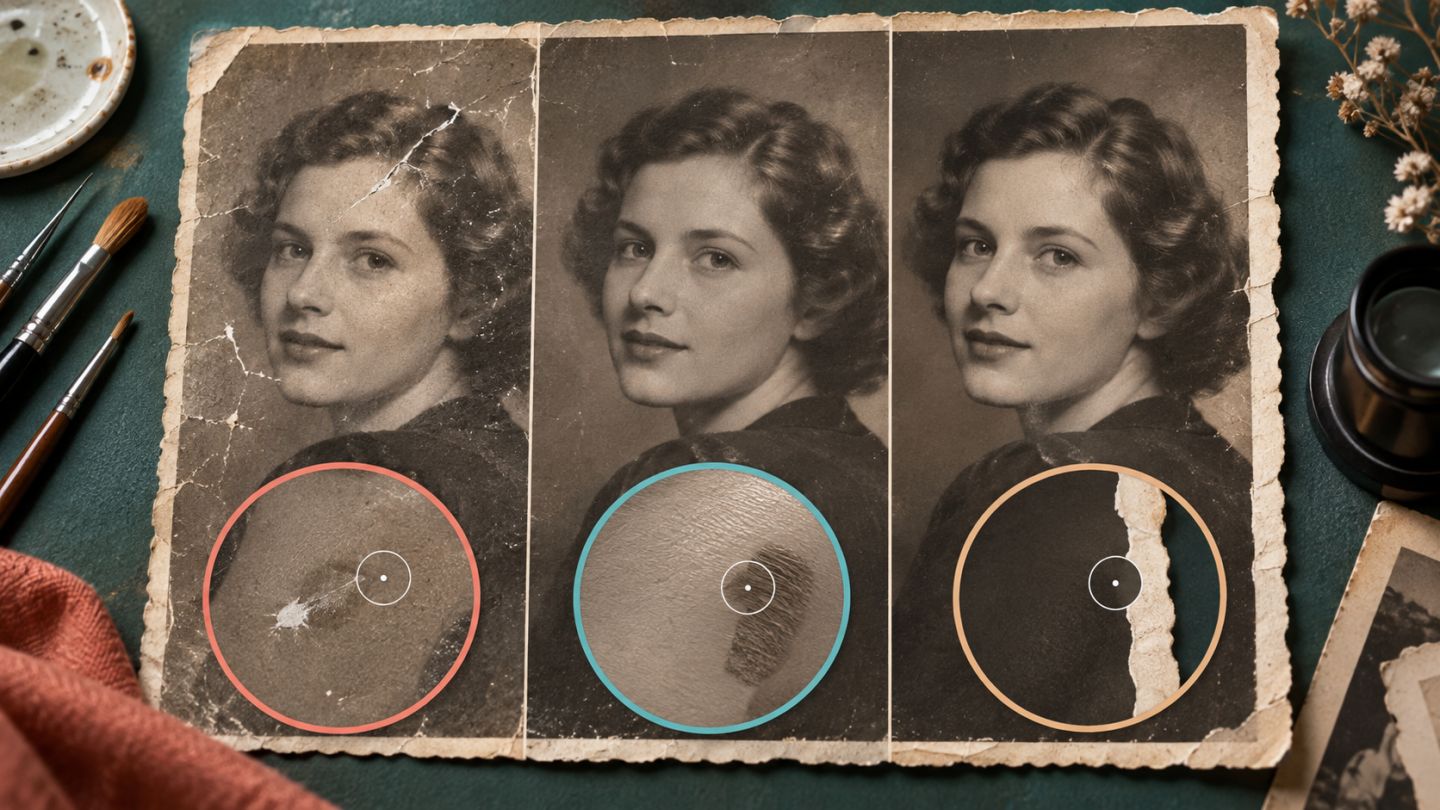
These three repair tools overlap, but they are not interchangeable. Spot Healing chooses nearby data automatically, Healing Brush samples texture and blends it into the destination, while Clone Stamp copies pixels more directly.
Quick comparison
| Tool | Method | Best for |
|---|---|---|
| Spot Healing | Analyzes surrounding pixels | Dust, small blemishes, short scratches |
| Healing Brush | Samples texture and blends destination tone | Skin, walls, gentle gradients |
| Clone Stamp | Copies source pixels | Hard edges, patterns, reconstruction |
Set up non-destructively
- Create an empty layer above the image.
- Choose Sample All Layers or Current & Below.
- Name layers by repair type.
- Use a brush only slightly larger than the defect.
- Toggle the layer to compare before and after.
Choose the tool
Use Spot Healing for small defects on even texture. If automatic sampling fails near a contrasting edge, use Healing Brush and Alt/Option-click a clean area with similar light. Choose Clone Stamp for architecture, hair, repeating patterns, and damaged photograph edges that require exact structure.
Aligned keeps the clone source moving with each stroke. Clone Source can store several sources and transform their overlay. Healing Brush Diffusion controls how quickly texture blends: lower values protect detail, while higher values suit smooth areas.
Common mistakes
- Sampling too close and copying the defect.
- Repeating one source until a visible pattern forms.
- Using the wrong brush hardness around edges.
- Working zoomed in without checking the full image.
- Removing natural skin or material variation.
The goal is to reduce distraction, not make every surface artificially perfect.
Practice exercise
Choose an image with dust, a smooth repair area, and a hard edge. Use each tool on a separate empty layer, then compare at 100% and at the final display size.




No comments yet. Be the first to share your thoughts.