
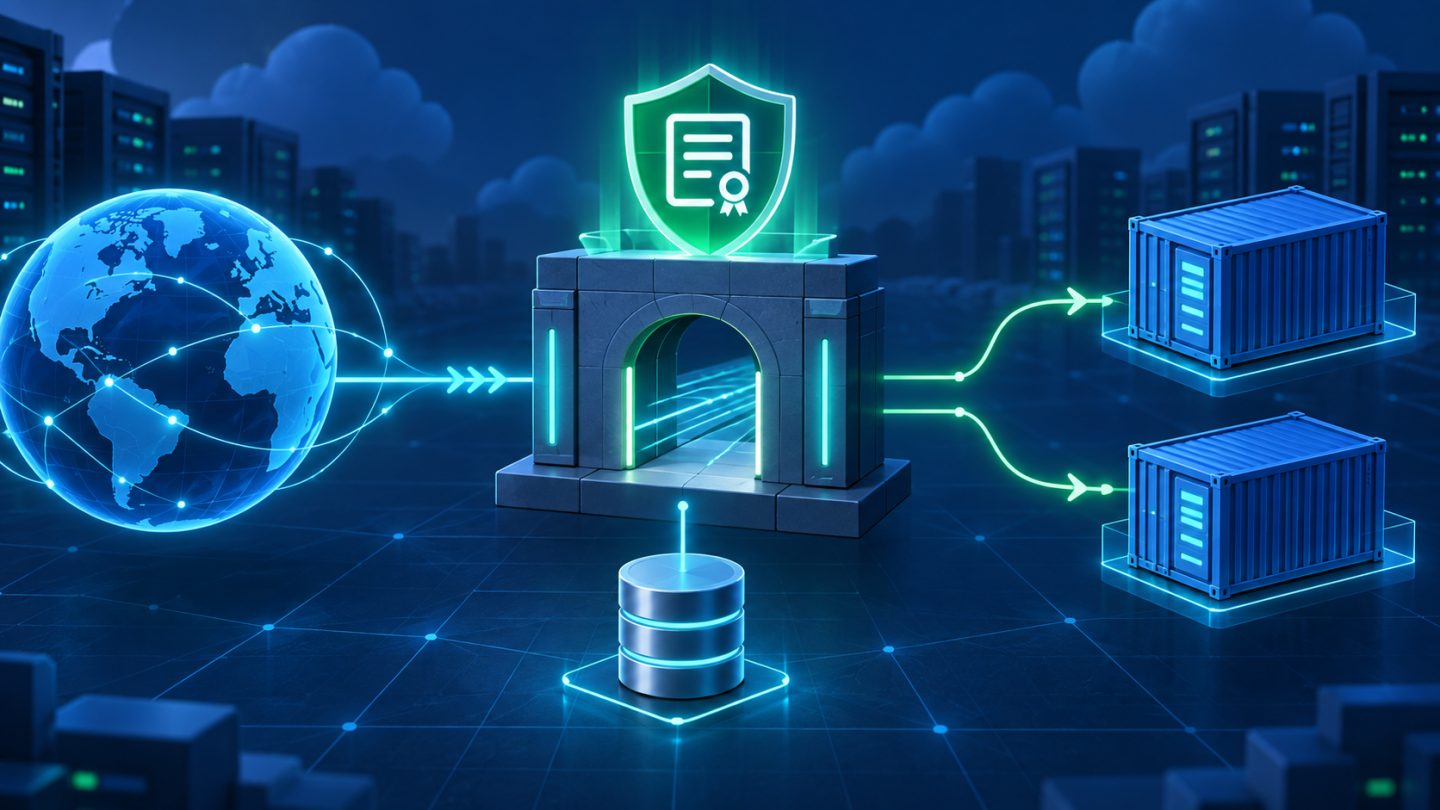
An application working inside a container is not automatically ready for the public Internet. It still needs a domain, TLS, HTTP-to-HTTPS redirects, persistent certificate storage, and a reverse proxy in front.
In this guide, Caddy accepts public traffic on ports 80 and 443, automatically manages HTTPS certificates for a domain, and proxies requests to an application across an internal Docker Compose network. Only Caddy is exposed; the application port does not need to be published on the host.
Deployment model
Internet
   |
   |  HTTP :80 / HTTPS :443
   v
Caddy container
   |
   |  Docker network: http://app:8080
   v
Application container
Caddy enables Automatic HTTPS when a site address contains a valid hostname. For a public domain, DNS must point to the server and ports 80 and 443 must reach Caddy so certificate issuance and traffic serving can work.
1. Prerequisites
- A Linux server with Docker Engine and the Docker Compose plugin.
- A domain or subdomain you control, such as
app.example.com. - Permission to change DNS and firewall/security-group rules.
- A container image whose HTTP server listens on
0.0.0.0:8080.
docker version
docker compose version
The commands use a Linux shell. Path and file-permission syntax differs on Windows and macOS, but Compose networking and volume principles remain the same.
2. Point DNS to the server
Create an A record for IPv4 and an AAAA record only when the server genuinely serves IPv6:
app.example.com  A     203.0.113.10
app.example.com  AAAA  2001:db8::10
These are documentation-only addresses; replace them with the real server IP. Verify propagation from an external network:
dig +short app.example.com A
dig +short app.example.com AAAA
An incorrect AAAA record often makes the site fail only for IPv6-capable users. If IPv6 is not configured end to end, do not add AAAA merely for completeness.
3. Open the required network ports
Allow inbound TCP 80 and TCP 443. Add UDP 443 if you want HTTP/3. Restrict SSH to administration addresses where possible.
# UFW example; inspect the current policy before applying it
sudo ufw allow 80/tcp
sudo ufw allow 443/tcp
sudo ufw allow 443/udp
sudo ufw status
Cloud security groups and the operating-system firewall are separate layers. A router must also forward these ports if the server sits behind NAT. Do not disable the entire firewall as a shortcut for certificate troubleshooting.
4. Create the project structure
mkdir -p caddy-docker/caddy
cd caddy-docker
touch compose.yaml caddy/Caddyfile .env
Put the domain in .env:
APP_DOMAIN=app.example.comThis example value is not secret, but production environment files should generally remain outside version control. Use a secret manager or an appropriate secrets mechanism for application credentials rather than baking them into an image or Caddyfile.
5. Write compose.yaml
services:
  app:
    image: registry.example.com/my-app:<approved-version>
    restart: unless-stopped
    expose:
      - "8080"
    networks:
      - web

  caddy:
    image: caddy:<approved-version>-alpine
    restart: unless-stopped
    depends_on:
      - app
    ports:
      - "80:80"
      - "443:443"
      - "443:443/udp"
    environment:
      APP_DOMAIN: ${APP_DOMAIN:?APP_DOMAIN is required}
    volumes:
      - ./caddy:/etc/caddy:ro
      - caddy_data:/data
      - caddy_config:/config
    networks:
      - web

networks:
  web:

volumes:
  caddy_data:
  caddy_config:
Replace <approved-version> with a tested version or digest; do not let a floating latest tag control production changes. The application image must listen on container port 8080.
expose documents the internal port without publishing it on the host. Services sharing the web network discover one another by service name, so Caddy connects to app:8080, not a container IP or localhost:8080.
The caddy_data volume is especially important because it contains certificates, private keys, and operational state. It is not a disposable cache.
6. Write the Caddyfile
{$APP_DOMAIN} {
    encode zstd gzip

    reverse_proxy app:8080

    log {
        output stdout
        format console
    }
}
A hostname in the site block activates Automatic HTTPS. Caddy obtains and renews certificates and configures HTTP-to-HTTPS redirects. reverse_proxy preserves the method and URI unless a rewrite changes them.
Do not add tls_insecure_skip_verify as a quick fix for an HTTPS upstream. Plain HTTP from Caddy to the app is commonly appropriate on a private Docker network. If upstream traffic crosses an untrusted network, configure TLS or mTLS with an explicit trust chain.
7. Validate before starting
Render the final Compose model and catch missing variables:
docker compose configValidate the Caddyfile with the selected image:
docker compose run --rm --no-deps caddy \
  caddy validate --config /etc/caddy/Caddyfile --adapter caddyfile
If you use an ACME staging endpoint during testing, remove it before going live because browsers do not trust staging certificates. Avoid repeatedly requesting production certificates while DNS or firewall rules are wrong; certificate authorities enforce rate limits.
8. Start the stack and watch logs
docker compose up -d
docker compose ps
docker compose logs --tail=100 caddy
docker compose logs --tail=100 app
Look for certificate issuance or challenge errors in Caddy logs. Confirm in application logs that the server listens on 0.0.0.0:8080, not only 127.0.0.1 inside the container.
depends_on provides basic startup ordering; it does not prove readiness. Add an application healthcheck for important deployments and make startup and reconnection resilient. Caddy may return 502 while the upstream is unavailable and recover once the app starts.
9. Verify from outside
curl -I http://app.example.com
curl -I https://app.example.com
curl -v https://app.example.com/health
Expect HTTP to redirect to HTTPS, the certificate to match the hostname, and the application endpoint to return its intended status. Also test from a browser on another device or network to avoid local DNS cache or hosts-file effects.
Do not use curl -k for production verification. It suppresses the certificate failures this step is meant to detect.
10. Reload configuration without stopping the container
After editing the Caddyfile, validate it and perform a graceful reload:
docker compose exec -w /etc/caddy caddy \
  caddy validate --config Caddyfile --adapter caddyfile

docker compose exec -w /etc/caddy caddy caddy reload
Mounting the ./caddy directory to /etc/caddy avoids problems with editors that replace a single file's inode and leave a file bind mount seeing old content. Reloading is preferable to restarting because Caddy can apply configuration without intentionally interrupting active traffic.
11. Update images deliberately
- Read release notes and test a chosen version or digest.
- Pull images, validate configuration, and run smoke tests.
- Update production during a controlled change window.
- Verify HTTPS, health endpoints, and logs afterward.
docker compose pull
docker compose up -d
docker compose ps
docker compose logs --since=10m caddy
docker compose down keeps named volumes by default, but down -v deletes them. Do not use -v in production without an explicit plan and backup.
12. What should be backed up?
compose.yaml, the Caddyfile, and DNS/firewall documentation.- Application and database data through their own backup procedures.
- The
caddy_datavolume when preserving state and certificates during migration matters.
Caddy data contains private keys, so backups must be encrypted and access-controlled. Caddy can often obtain certificates again when DNS and ports remain correct, but bulk reissuance may encounter rate limits and is not a backup strategy.
13. Troubleshoot common failures
Certificate issuance fails
- DNS points to the wrong address or an incorrect AAAA record remains.
- Cloud firewall, UFW, or the router blocks ports 80/443.
- Another service already owns a port.
- An upstream proxy or CDN has an incompatible DNS/TLS mode.
docker compose logs caddy
sudo ss -lntup | grep -E ':(80|443)\b'
HTTPS works but returns 502
- The app is not ready or is crash-looping.
- The app binds only to
127.0.0.1in its container. - The
reverse_proxyservice name or port is wrong. - Caddy and the app do not share a Docker network.
docker compose ps
docker compose logs app
docker compose exec caddy wget -qO- http://app:8080/health
Minimal Caddy images may omit debugging tools. If a diagnostic command is unavailable, attach a temporary troubleshooting container to the same network rather than installing tools inside a running production container.
The domain works but the application redirects forever
The framework may not trust proxy headers or may enforce HTTPS incorrectly. Caddy sets common forwarding headers; configure the framework to trust only the actual proxy, not every Internet address. Avoid conflicting redirect logic across several layers.
14. Hardening checklist
- Publish only Caddy's 80/443 ports; keep apps, databases, and caches internal.
- Pin image versions or digests and maintain an update schedule.
- Store no secrets in images, Git, or the Caddyfile.
- Persist
caddy_dataand protect its backups. - Restrict SSH and monitor logs, disk, certificates, and endpoint health.
- Apply upload/body limits and timeouts where the application requires them.
- Add security headers only after understanding the application; incorrect HSTS has long-lived effects.
- Never disable TLS verification to hide an upstream trust failure.
Conclusion
Caddy simplifies the TLS portion of a Docker deployment, but safe operations still depend on correct DNS, explicit network access, persistent volumes, name-based service discovery, and validate/reload procedures. With this structure, the application stays isolated behind a reverse proxy, HTTPS is managed automatically, and the configuration remains small enough to inspect, back up, and upgrade deliberately.




No comments yet. Be the first to share your thoughts.