
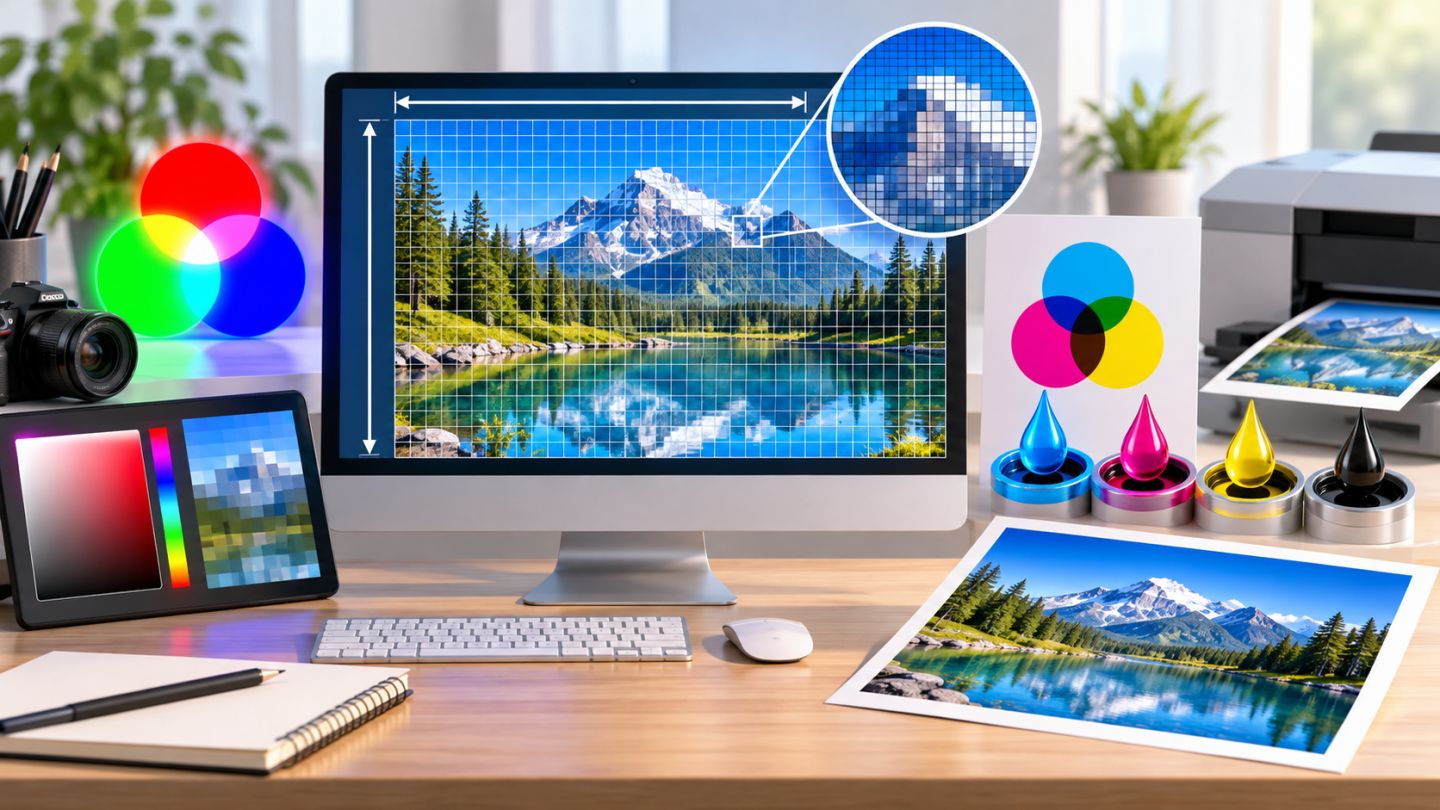
A Photoshop document should begin with its destination. Screen graphics need appropriate pixel dimensions. Print work also needs physical size, pixel density, bleed, and the color profile requested by the print provider.
Separate dimensions, print size, and resolution
- Pixel dimensions: width and height in pixels.
- Print size: physical dimensions in inches, centimeters, or millimeters.
- Resolution: pixel density for output, commonly measured in PPI.
On screen, pixel dimensions directly determine available detail. Changing only metadata from 72 to 300 PPI does not make a 1920 x 1080 image sharper on the web.
Use the print calculation
pixels = size in inches x PPI
inches = centimeters / 2.54
An A4 page at 300 PPI is roughly 2480 x 3508 px before bleed. Ask the printer for final dimensions, bleed, and profile.
Choose RGB or CMYK
| Mode | Best for | Note |
|---|---|---|
| RGB | Screens, websites, apps, social media | Usually offers a wider gamut |
| CMYK | Process-color printing | Appearance depends on the output profile |
| Grayscale | Monochrome images | Stores brightness information |
A common workflow is to edit in RGB, then proof or convert for CMYK output near the end according to the printer's specification.
Choose bit depth
- 8 bits/channel: suitable for most web design and smaller files.
- 16 bits/channel: smoother tonal transitions for substantial photo adjustments.
- 32 bits/channel: specialized HDR workflows with higher resource use.
Reference presets
| Purpose | Dimensions | Color |
|---|---|---|
| Square social post | 1080 x 1080 px | RGB, sRGB |
| Full HD visual | 1920 x 1080 px | RGB, sRGB |
| Article cover | 1440 x 810 px | RGB, sRGB |
| High-quality A4 print | 21 x 29.7 cm, 300 PPI | Printer-specified profile |
Create the document
- Choose
File > New. - Select a relevant preset or enter Width and Height.
- Use pixels for screens and physical units for print.
- Set print Resolution.
- Choose Color Mode and bit depth.
- Select a white, colored, or transparent background.
- Review the Color Profile.
- Save reusable settings as a preset.
Understand Resample
In Image > Image Size, enabling Resample allows Photoshop to add or remove pixels. Disabling it preserves the pixel count and changes only the relationship between print size and PPI. Upscaling cannot recreate all missing source detail.
Use color profiles deliberately
sRGB is broadly compatible for general web output. Print work should use the provider's profile and a soft-proof workflow when available.
Common mistakes
- Entering centimeters while assuming pixels.
- Believing 300 PPI alone improves web sharpness.
- Converting to CMYK without an output profile.
- Repeatedly enlarging a small source image.
- Forgetting print bleed.
- Unlinking width and height and distorting the image.
Practice exercise
Create the same composition twice: a 1440 x 810 px RGB/sRGB web document and an A4 300 PPI print document. Compare pixel dimensions, units, and expected file size, then save both configurations as named presets.

No comments yet. Be the first to share your thoughts.