
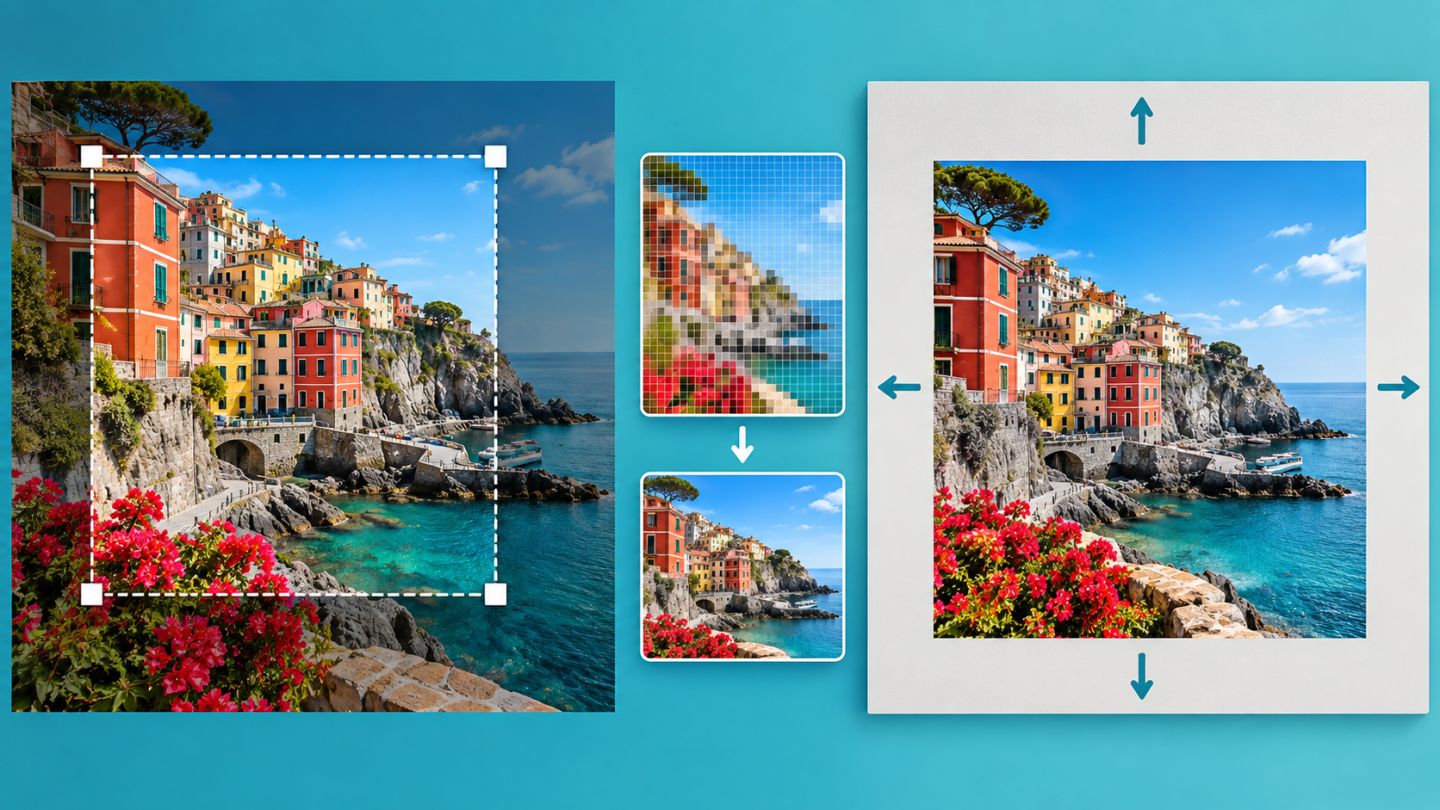
Crop, Image Size, and Canvas Size all change dimensions, but they change different things. Choosing the wrong command can damage composition, reduce quality, or create an unexpectedly large file.
Compare the three commands
| Command | Changes | Effect on content |
|---|---|---|
| Crop | Composition and visible canvas | May remove areas outside the boundary |
| Image Size | Pixel count or print dimensions | Scales the entire image |
| Canvas Size | Space surrounding the image | Does not scale existing pixels |
Use Crop for composition
The Crop Tool changes aspect ratio, removes unwanted edges, and straightens horizons. Choose a ratio rather than pixel dimensions when you only need to constrain shape. Use overlays to evaluate balance.
Disable Delete Cropped Pixels when you want to preserve content outside the visible boundary for later repositioning.
Understand Image Size and Resample
Image > Image Size changes pixel dimensions or print settings. With Resample enabled, Photoshop adds or removes pixels. With it disabled, the pixel count remains fixed while print size and PPI change together.
- Downsizing is usually safer than substantial enlargement.
- Keep Width and Height linked to prevent distortion.
- Judge the resized result at 100%.
- Preserve a master and resize only an output copy.
Use Canvas Size for extra space
Image > Canvas Size does not scale content. Use it to add margins, extend a background, or make room for type. The anchor controls which area stays fixed as space is added or removed.
Use Perspective Crop on flat surfaces
Perspective Crop can crop and straighten a photographed plane such as a document or sign. Place its four corners along the real surface and avoid extreme stretching that would reduce quality.
Three practical workflows
- Web image: crop to the required ratio, resize to final pixels, and export JPEG or WebP.
- Print image: crop, inspect pixels and PPI without resampling, then follow the printer's specification.
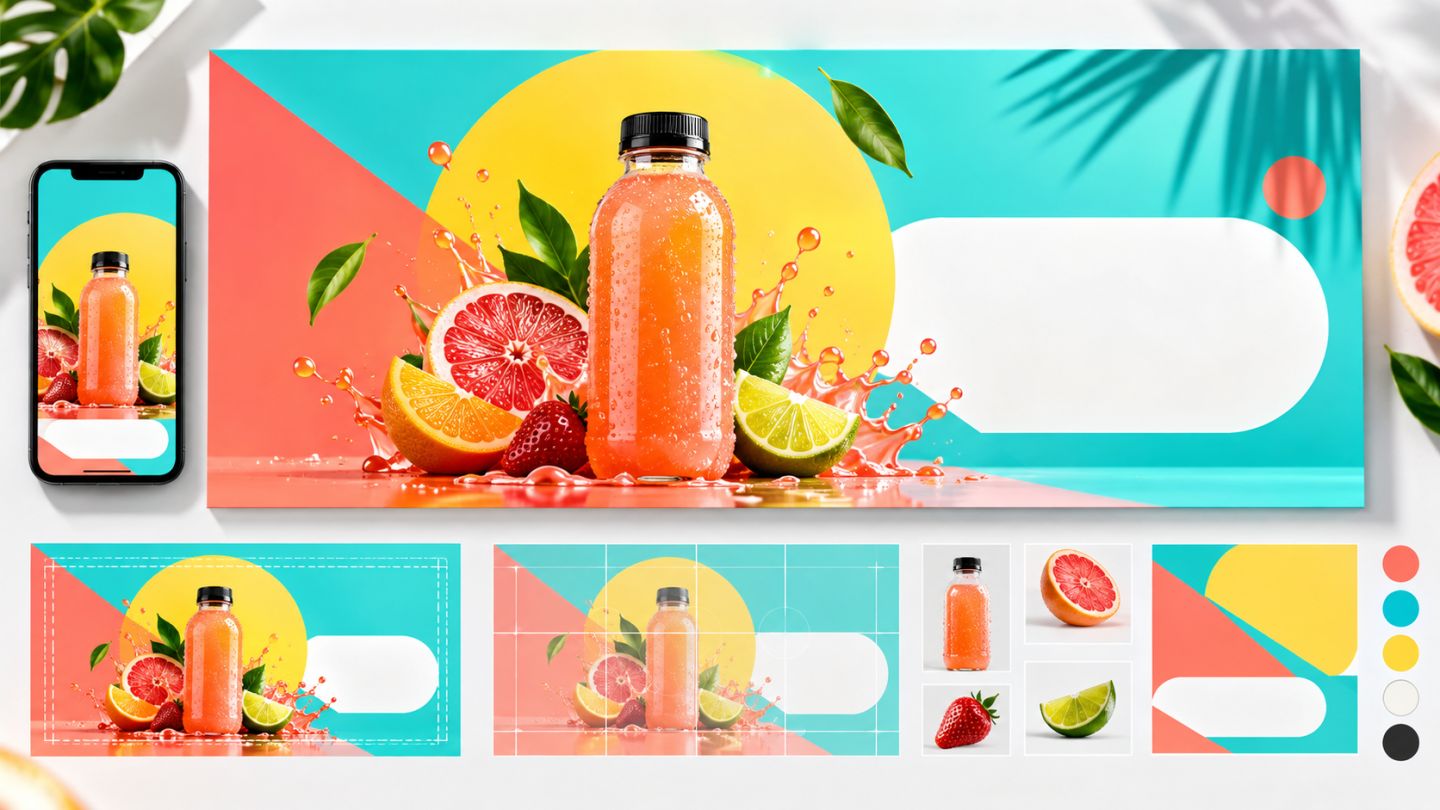
- Banner with copy space: expand with Canvas Size and add content on separate layers.
Do not use PPI to judge web sharpness. For screens, evaluate pixel dimensions and export compression.
Common mistakes
- Unlinking Width and Height and distorting the image.
- Resizing the only master repeatedly.
- Using destructive crop before the composition is final.
- Using Canvas Size when the whole image needs scaling.
- Expecting large upscaling to restore real detail.
Practice exercise
From one landscape image, create a 1080 x 1080 square, a 1440 x 810 banner, and a version with 20% wider canvas for text. Compare layers, pixel counts, and how much original content remains recoverable.
No comments yet. Be the first to share your thoughts.