

This 30-lesson Photoshop roadmap progresses from software fundamentals to photo editing, practical design, AI, automation, and publishing. Each lesson focuses on a defined skill set and includes practice so you can evaluate the result yourself.
How should you follow the roadmap?
- Beginners should follow the lessons in order to build a solid foundation in layers, selections, and masks.
- Experienced learners may enter at a relevant stage, but should still complete the capstone project.
- Allow 45-90 minutes per session to read, reproduce the workflow, and save an organized PSD.
- Do not only memorize tool locations; learn when to use each method and how to keep work editable.
The goal is not to memorize every Photoshop button. It is to analyze a requirement, choose an appropriate method, and deliver reliable work.
Stage 1: Getting Started with Photoshop
Understand what Photoshop is for, set documents up correctly, and master the layer system.
- Learn Photoshop Part 1: What Is Adobe Photoshop?
Follow a practical Photoshop roadmap that teaches beginners the core concepts in the right order through focused exercises. - Learn Photoshop Part 2: Interface, Workspaces, and Panels
Learn the Photoshop interface, arrange a practical workspace, and understand the essential panels every beginner needs. - Learn Photoshop Part 3: Size, Resolution, RGB, and CMYK
Create Photoshop documents with the correct dimensions, resolution, color mode, bit depth, and profile for screen or print. - Learn Photoshop Part 4: PSD, JPEG, PNG, and TIFF
Compare PSD, JPEG, PNG, and TIFF for editable masters, web images, transparent graphics, professional exchange, and print. - Learn Photoshop Part 5: Create and Organize Layers
Learn to create, select, reorder, name, group, lock, and manage Photoshop layers with a nondestructive workflow.
Stage 2: Essential Tools
Build accurate selection, masking, cropping, and transformation skills.
- Learn Photoshop Part 6: Marquee, Lasso, and Quick Selection
Learn to create and refine selections with Marquee, Lasso, and Quick Selection so edits affect exactly the right area. - Learn Photoshop Part 7: Object Selection and Select Subject
Isolate people and products with Object Selection, Select Subject, and Select and Mask while keeping clean, editable edges. - Learn Photoshop Part 8: Layer Masks from Beginner to Advanced
Understand white, black, and gray in Photoshop layer masks, then apply masks to images, adjustments, and groups non-destructively. - Learn Photoshop Part 9: Crop, Resize, and Canvas Size
Learn when to use Crop, Image Size, or Canvas Size to change composition, pixels, or workspace without damaging an image. - Learn Photoshop Part 10: Free Transform, Warp, and Perspective
Use Free Transform, Distort, Perspective, and Warp to scale, rotate, and fit images into scenes naturally and non-destructively.
Stage 3: Photo Editing and Restoration
Clean images, remove backgrounds, correct tone and color, and retouch non-destructively.
- Learn Photoshop Part 11: Spot Healing, Healing Brush, and Clone Stamp
Compare Spot Healing, Healing Brush, and Clone Stamp, then choose the right tool for natural, non-destructive repairs. - Learn Photoshop Part 12: Remove Unwanted Objects
Remove distracting objects with Remove Tool, Content-Aware Fill, and Clone Stamp while keeping the reconstructed background natural. - Learn Photoshop Part 13: Remove Backgrounds and Refine Hair
Preserve natural hair edges while removing a background with Select Subject, Refine Hair, Select and Mask, and layer masks. - Learn Photoshop Part 14: Levels and Curves
Understand histograms, black and white points, and curves to adjust tone and contrast non-destructively in Photoshop. - Learn Photoshop Part 15: Hue/Saturation, Color Balance, and Selective Color
Choose Hue/Saturation, Color Balance, or Selective Color for controlled correction, color separation, and grading. - Learn Photoshop Part 16: A Camera Raw Workflow
Follow a Camera Raw workflow from profile and white balance through tone, color, detail, lens correction, and local masks. - Learn Photoshop Part 17: Natural Skin Retouching
Retouch skin naturally with healing, local color correction, and dodge and burn while preserving pores, shape, and identity. - Learn Photoshop Part 18: Dodge and Burn for Portrait Depth
Use Dodge and Burn to even local tone and shape portrait depth with Curves or a gray layer while preserving identity.
Stage 4: Practical Design Projects
Combine techniques into usable banners, posters, product images, and composites.
- Learn Photoshop Part 19: Smart Objects and Smart Filters
Use Smart Objects and Smart Filters to transform, replace, and filter content while preserving editable source data. - Learn Photoshop Part 20: Blending Modes and Clipping Masks
Combine Blending Modes and Clipping Masks so textures, color, light, and adjustments affect only the intended layer. - Learn Photoshop Part 21: Design a Social Media Banner
Design social banners from brief and hierarchy through responsive artboards, mobile review, and optimized export. - Learn Photoshop Part 22: Design a Complete Event Poster
Build an event poster from brief, moodboard, thumbnails, and hierarchy through final web or print preflight. - Learn Photoshop Part 23: Edit Product Images for Ecommerce
Create consistent product images through background removal, color correction, cleanup, contact shadows, framing, and web export. - Learn Photoshop Part 24: Professional Photo Compositing
Build believable composites by matching perspective, scale, light, color, sharpness, grain, depth of field, and shadows.
Stage 5: AI, Automation, and Publishing
Use AI responsibly, automate repetitive work, manage color, and deliver professional outputs.
- Learn Photoshop Part 25: Generative Fill and Generative Expand
Use Generative Fill and Generative Expand to add, remove, replace, or extend image content in a controlled workflow. - Learn Photoshop Part 26: Write Natural Generative Fill Prompts
Write concise Generative Fill prompts using subject, material, light, viewpoint, and context while controlling placement with selections. - Learn Photoshop Part 27: Actions and Batch Processing
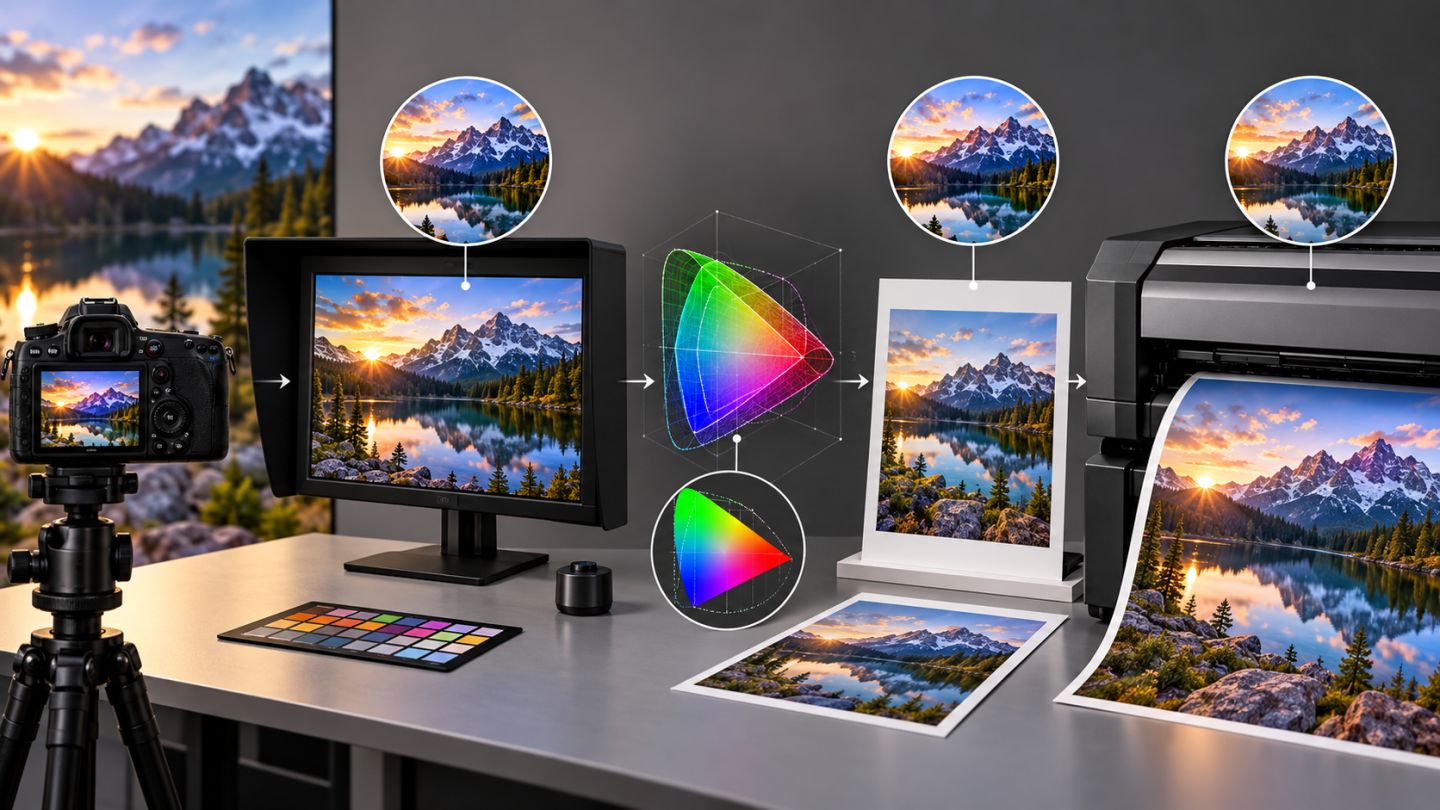
Record reliable Actions and use Batch Processing to resize, convert, name, and export large image sets safely. - Learn Photoshop Part 28: Color Management and Profiles
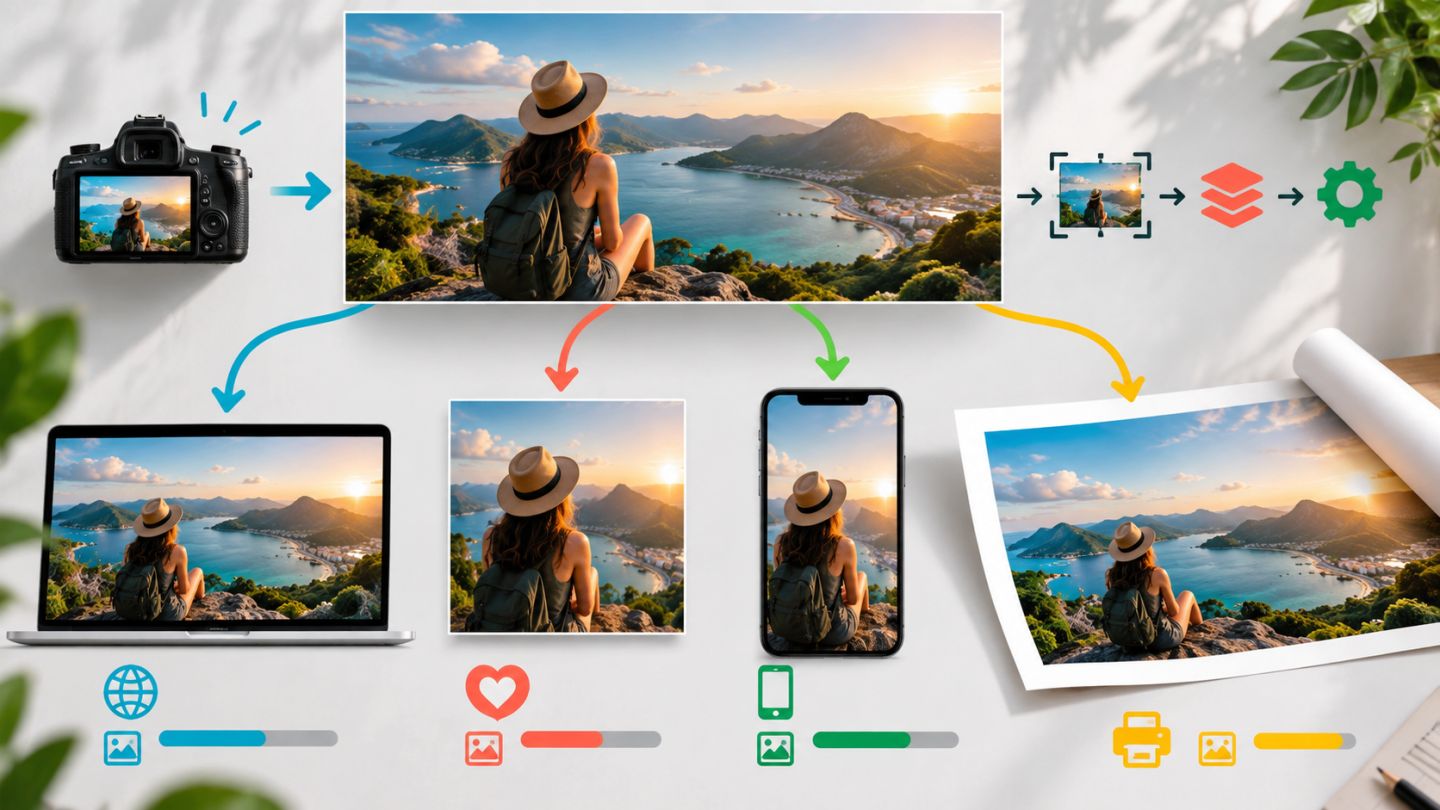
Understand ICC profiles, working spaces, Assign versus Convert to Profile, and soft proofing for predictable output. - Learn Photoshop Part 29: Export for Web, Social, and Print
Choose dimensions, format, profile, compression, and output sharpening for websites, social platforms, or print. - Learn Photoshop Part 30: Complete a Professional Project
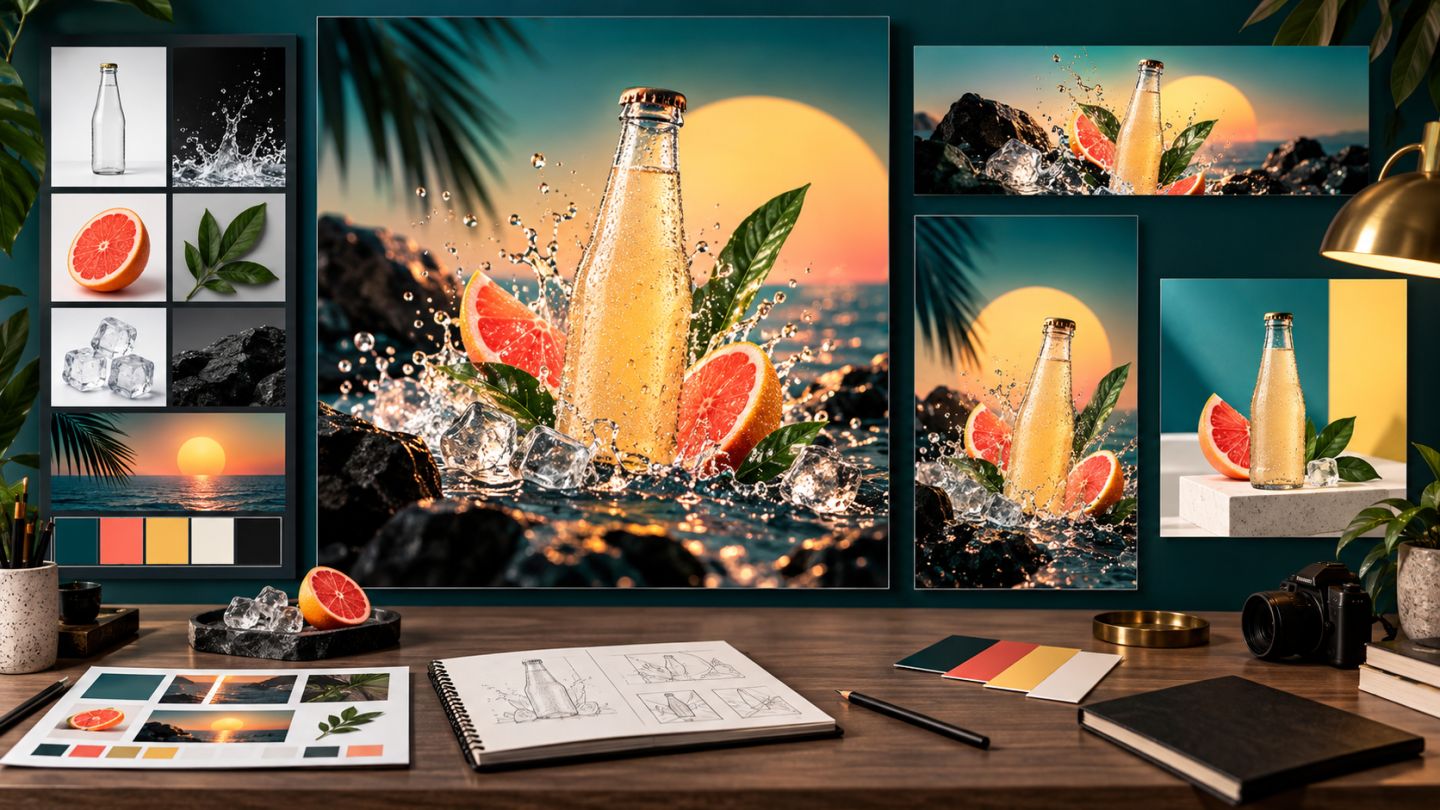
Build one key visual and a coordinated web, social, poster, and ecommerce system through a professional Photoshop workflow.
What you can do after 30 lessons
After completing the roadmap, you can set up documents for their destination, isolate subjects, correct tone and color, retouch, composite, design communication assets, use AI tools responsibly, and export correctly for websites, social media, or print.
Suggested final project
Choose a fictional product and create a key visual, website cover, square post, vertical story, print poster, and listing image. Keep an organized layered master, then review color, composite edges, file size, profiles, and asset replaceability.

No comments yet. Be the first to share your thoughts.